Selfie to AI Music Video: A Photo Preparation Guide
You can turn a selfie into an AI music performance by adding it as the lead singer of a five-piece band. Choose a clear adult portrait with a visible face and shoulders, keep or swap the four AI bandmates, select the video settings and click Generate video. Photo checks run automatically first. The model creates a new singing performance around your likeness; a photo does not supply your real voice or a previously recorded concert.
What Is an AI Music Performance Video?
In this workflow, the photo supplies appearance information while the model creates motion, a concert setting, supporting musicians, and a generated musical performance. Your selfie is a reference for identity and visible build cues, rather than a complete description of how your body should look from every angle.
That distinction matters when choosing a source. A tightly cropped selfie may show an excellent face but almost no neck, shoulder, or torso context. The model still has to invent those regions for wider shots. A more suitable reference can make the request clearer, although it cannot guarantee the final anatomy.
Tiny Desk AI focuses on intimate office-concert scenes. It is independent of NPR and NPR Music, and the output should not be presented as an official Tiny Desk Concert appearance. Visit the homepage to see how the product describes its generated performances.
Choosing a Suitable Selfie
Look for a recent, sharp photo that resembles how you want to appear. Use one adult per image. If someone else appears behind your shoulder, select another photo or prepare a clean portrait of yourself before uploading. Do not assume the largest face will always be treated as the intended reference.
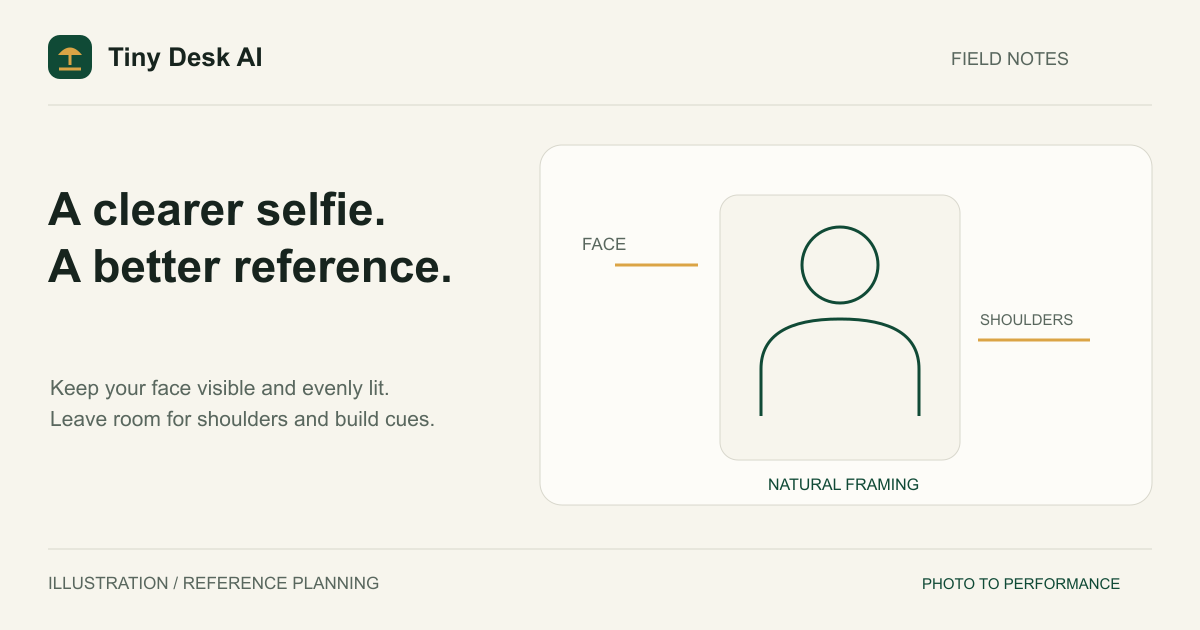
A waist-up portrait is often more informative than an extreme face close-up. If you are taking a new photo, move the camera farther away and leave room for your head, neck, and shoulders. A self-timer can help you include more of your upper body without holding the phone very close to your face.
Keep the source proportions natural. Avoid stretching the photo, applying a face-shape filter, or cropping so tightly that the top of the head and shoulders disappear. Those edits can remove or distort the very cues you want the model to preserve.
Use a genuine JPG, PNG, or WebP up to 10 MiB. The current uploader requires 301–5,999 pixels on each side and a width-to-height ratio between 0.4 and 2.5. If your selfie is in another format, export it to a supported one; changing the filename alone will not convert it.
Face Visibility and Lighting
Choose even light that lets you see both sides of the face. A window can provide a simple setup if it does not leave one side very dark. Avoid a bright light directly behind your head that turns the face into a silhouette.
Your eyes, nose, mouth, facial outline, and hairstyle should be readable. Sunglasses, a hand across the mouth, a phone covering part of the face, or motion blur can hide identity details. Strong colored light and heavy smoothing can also make skin appearance less clear.
A relaxed expression and a near eye-level camera give a straightforward reference. You do not need to pretend to sing for the photo. The performance will be generated, and an exaggerated open-mouth expression may provide a less useful identity reference than a clear, natural portrait.
Before moving on, inspect the entire selected image in the preview. Check the face at a useful size, then check the framing around it. The photo guide offers a broader checklist for portraits beyond selfies.
Your Place in the Band
A selfie belongs on the Lead singer card. It is the only photo the generator requires, and it puts your reference person at the main microphone. The two backup singers, keyboard player and saxophone player start as AI-generated portraits of fictional adults, so the finished clip is still a full five-piece band.
Those default portraits are sent as references alongside your selfie, giving each supporting role its own face to follow. None of them should take on your appearance; if one does, treat it as an identity error. Placing your own selfie on several cards does not create a reliable way to show yourself playing multiple instruments.
If a friend wants to join, collect their permission and a suitable individual portrait first, then use Replace photo on the card for the role they should play. The friends guide explains how to plan a mixed cast. Start with the cast your references actually support, rather than replacing bandmates just to make the scene look busier.
Generating the Video
Open the generator, sign in if needed, and complete email verification for real generation access. Add the selfie to the Lead singer card and inspect the preview. Photo upload and checking run automatically when you click Generate video after choosing your settings. A local thumbnail lets you review the selection before starting; no separate upload button is required.
Choose 10 or 15 seconds and decide between 9:16 and 16:9. Vertical suits a tall presentation; horizontal gives more room around the singer and band. The requested aspect ratio changes the generated framing, rather than simply displaying the same video in a different player.
Pick a model and an available resolution: 480p or 720p with any model, or 1080p with Seedance 2.0. Review the current access and cost information, then click Generate video once. There is no promised free generation allowance. Keep the request details if the submission outcome is unclear, and use the same task's query or recovery controls instead of repeatedly creating new ones.
When the video is ready, review the full performance and download the version you intend to keep. Check the saved file as well as the browser player. The general tutorial explains the upload, creation, and download stages in more detail.
Improving Results
If the face drifts, compare the reference with several moments in the clip. Determine whether the issue is present throughout or appears after an angle change. A single good opening frame does not establish consistent likeness.
If the head looks too large or the body too short, revisit the source framing. A tight face crop leaves the model to complete most of the body. Try a natural portrait with clearer shoulders and torso rather than merely requesting a larger output resolution. The generator's anatomy instructions are helpful constraints, not a guarantee.
Look at hands, microphone contact, shoulder movement, and standing balance as well. Music-performance realism depends on how these elements work together, not just whether the face is recognizable. Choose an acceptable result using the criteria that matter for your intended audience.
If you decide to generate again, change one important variable and keep notes about what you are comparing. Each new task is a separate paid operation. Do not assume a retry will automatically preserve the best details from the previous clip.
FAQ
Does a selfie provide my real singing voice?
No. A still image does not supply a voice recording. The generated audio should not be described as a faithful recording or clone of your voice.
Can I use a full-body photo instead?
Yes, if it meets the file rules and the face remains clear enough to serve as a useful identity reference. A distant person with only a few visible facial details may be less useful than a well-framed waist-up portrait.
Will it look exactly like me?
There is no exact-match guarantee. Identity, anatomy, gestures, and shot continuity can vary. Review the result before sharing it as a representation of yourself.
Can I use someone else's selfie?
Use only a photo you have permission to upload and a likeness the person has agreed you may use for this purpose. Discuss sharing separately, especially if you plan to publish the generated performance.