How to Create a Tiny Desk AI Band With 5 Photos
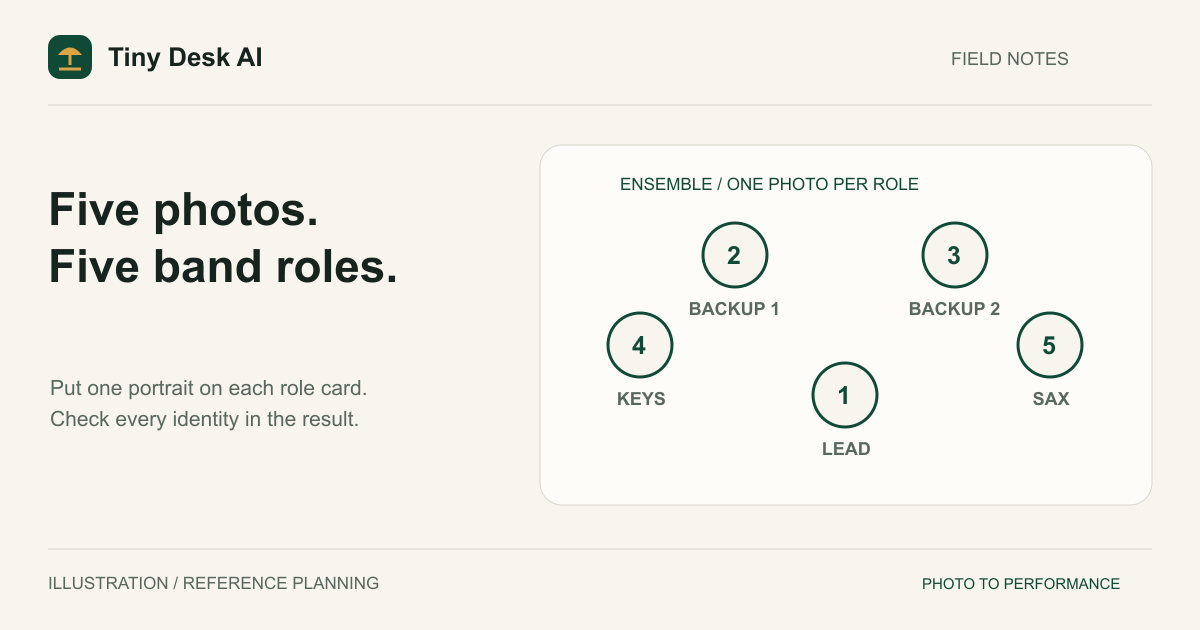
To create a Tiny Desk AI band with five photos, add one adult portrait to each role card: lead singer, Backup singer 1, Backup singer 2, keyboard player and saxophone player. Supporting cards you leave alone keep their AI-generated bandmates. Choose your settings and click Generate video once; photo checks run automatically. Review all five identities and their roles before downloading or sharing.
What Is an AI Band Video?
An AI band video places reference people in a generated ensemble performance. The model constructs the room, instruments, performance, and shots around those references. You do not need five people to meet in a studio or record themselves playing together.
Every Tiny Desk AI video already has five performers. Only the lead singer needs your photo; the other four roles start with AI-generated portraits of fictional adults. This guide covers the fullest version of the idea, where you replace all four so that every face in the band comes from someone you know.
That makes the reference plan especially important. You are specifying five identities and five musical roles, not simply asking for five people in a room. A clip with the right headcount can still be wrong if the saxophone player has a backup singer's face or one of your friends turns into a stranger. Multi-person likeness and role consistency are generation goals, not guaranteed constraints enforced on every frame.
How Five Reference Photos Work
Each photo supplies a separate visual reference. Use one person per image, with a clear face, visible hairstyle, and useful shoulder or torso context. The generator ties each photo to the card where you added it, so the role comes from the card rather than from the order in which you picked files.
A reference photo is not a fixed first frame that every shot must copy. The model must complete unseen body regions, place people with instruments, and maintain them through movement and edits. Tight portraits leave more of that anatomy and spatial arrangement to inference.
Do not combine all five people into a collage. That removes the clear relationship between one card and one person. It can also make individual faces smaller and encourage the composition to look like a panel of photographs rather than one concert scene.
The requested cast is exactly the five references you upload, whether they are your own photos or default portraits. The current instructions ask for each of them once, without extra performers. Treat this as an instruction to verify in the output, not evidence that missing people or identity substitutions cannot happen.
Filling the Five Roles
Lead singer
Choose the person you want at the main vocal microphone. Use a portrait with an unobstructed mouth and readable facial structure. The lead is the only required card and usually receives the most screen time, so an unsuitable photo here is difficult to overlook.
Backup singer 1 and Backup singer 2
The two backup singers support the lead vocal from their own microphones. Give them distinct faces; two similar photos of look-alike friends make it harder to tell later whether the model kept them apart. In the result, check that neither backup singer turns into a copy of the lead.
Keyboard player
The keyboard card supplies the identity of the musician at the keys. Their source photo does not need to show a keyboard. Inspect whether this person's face remains attached to whoever is actually playing, including in hand and instrument close-ups.
Saxophone player
The saxophone card supplies the horn player. Verify the face alongside the instrument, especially in shots that feature the saxophone. Seeing a saxophone somewhere in the scene is not enough to confirm the role mapping.
Write the cast down before you open the file picker. If someone cares about a particular role, settle that before uploading. You cannot change a completed video's cast by moving photos around afterward.
Uploading Photos
Open the generator. Add the lead singer first, then use Replace photo on each of the four bandmate cards. Inspect every preview with its role label, and remove duplicates, wrong people and accidental crops before continuing. Removing a replacement brings back that card's AI bandmate if you change your mind.
Supported files are JPG, PNG, and WebP, up to 10 MiB per photo. Each side must be 301–5,999 pixels and the width-to-height ratio must be between 0.4 and 2.5. Avoid compressed social-media screenshots when you have a better original. The photo guide covers useful framing and light.
The selected photos stay in local preview until you click Generate video. That single action uploads and checks all five references automatically before creating a video task. An image visible in your browser preview has not yet completed those checks. If you replace a portrait, the next generation action checks the changed set automatically.
Generating the Band Performance
Select 10 or 15 seconds. Both are short performances, so avoid expecting a complete song or a separate close-up of every person. More cuts within a short clip can make identity and spatial continuity harder to judge.
Choose 9:16 or 16:9. For five people, consider 16:9 if seeing the group's lateral separation is your priority. A vertical composition can arrange musicians in depth, but someone standing behind the lead may be partly hidden. A wider format provides room; it does not guarantee correct faces or anatomy.
Pick a model and an available resolution, review the cost and account access, then click Generate video once. Keep the original request if the outcome becomes uncertain. Recover or query that task instead of creating a replacement while the first may still be running.
After completion, play the entire clip. Pause on the opening ensemble view, any instrument shots, and the ending. Compare each visible person with the five reference thumbnails. Download an acceptable result within the seven-day retention window. The examples page shows approved five-piece outputs for comparison, not a guarantee of your next generation.
Common Problems
One person is missing or hidden
Look across the whole clip before deciding a person is absent. A single frame may hide someone behind a microphone, instrument, or another performer. If no shot clearly establishes the person, the result has not met the five-person requirement. A higher resolution alone will not restore a missing identity.
The keyboard or saxophone player has the wrong face
Check the cards first: was the intended keyboard player's photo on the keyboard card, and the saxophone player's on the saxophone card? If the inputs were correct, record the failure as identity-role drift. The current instructions ask for that mapping, but the model can still ignore or confuse it.
Bodies look compressed
Review whether the source photos show only faces and whether the scene is too crowded for the chosen format. A portrait with visible shoulders and torso gives more natural build cues. Do not stretch the input or assume all five full bodies must fit side by side in a vertical frame.
FAQ
Does using five photos change the selected model?
No. Choose Mini, Fast or Seedance 2.0 in the model picker before generating. The number of bandmates you replace does not switch that selection. A completed task keeps its original model and settings, even if you change the form for a later video.
Can I replace only some of the bandmates?
Yes. Replace as many of the four supporting roles as you like; every card you leave unchanged keeps its AI bandmate. With only the lead photo you still get a five-piece band. The friends guide helps plan a mixed cast.
Can I guarantee that every face matches?
No. Correct references and role instructions improve the specification, but they are not a hard identity lock. Review the delivered video and avoid presenting a visibly substituted or merged face as a faithful result.