Best Photo for Tiny Desk AI: A Portrait Checklist
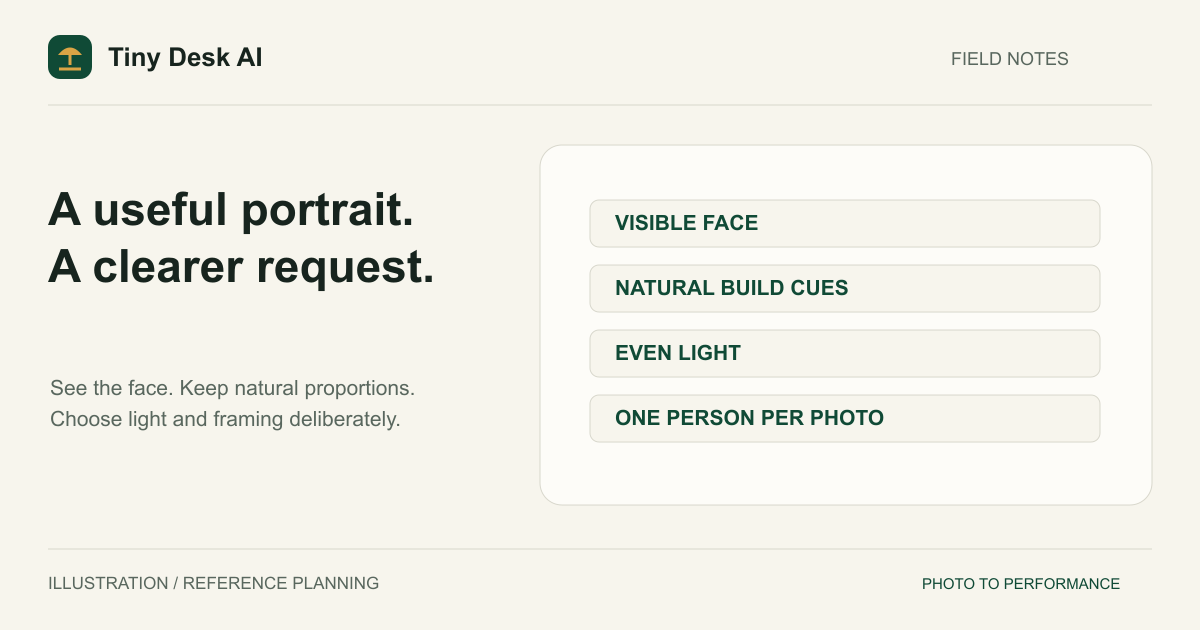
The best photo for a Tiny Desk AI video shows one adult with a clear, recognizable face, an unobstructed hairstyle and enough shoulder or torso context to suggest a natural build. Choose even light and a normal camera distance over dramatic filters or a very tight face crop. A good reference reduces ambiguity, but it cannot guarantee perfect likeness or body proportions.
Choose Information the Model Can Actually See
Think of the photo as evidence about a person. The visible face, hair, skin appearance and build cues help define the reference. Hidden shoulders, blurred eyes or a face reshaped by a beauty filter leave important information uncertain. A fashionable photo is not automatically a useful identity reference.
Look at the image at a comfortable viewing size before judging it. Can you recognize the person without relying on the filename? Are facial features genuinely visible, rather than merely sharpened outlines? Enlarging a small screenshot can make the file bigger without restoring missing detail.
Choose the appearance you actually want represented. Mixing a recent portrait with a heavily edited older version gives you an unclear target for evaluating the result. You do not need a passport-style expression, but the face should remain readable.
Frame the Face and Body Together
Prefer useful context to a tight crop
A waist-up portrait often provides a practical balance: the face is large enough to inspect while the neck, shoulders and upper torso remain visible. A full-body photo can also work if the face is not too small. Neither framing is universally best; useful detail matters more than the label.
Avoid cutting the image immediately below the chin. When the reference contains only a face, the model must invent almost the entire body for wider performance shots. That does not make the image invalid, but it gives you less information for checking natural shoulder width and torso scale.
Keep the camera perspective natural
If you are taking a new portrait, step back or use a self-timer instead of holding a wide-angle phone camera very close to your nose. Keep the camera near eye level. Extreme upward or downward views can make the head and shoulders look different from how they appear at a normal distance.
Do not stretch an image to fit a different shape. Use an ordinary crop if needed and preserve the person's proportions. The reference photo's aspect ratio does not have to match the final video's aspect ratio.
Check Light, Expression and Obstructions
Even light makes it easier to see both sides of the face. A simple indoor portrait can be more useful than a dramatic scene where one eye disappears into shadow. Avoid a bright background that makes the person a silhouette.
Check for sunglasses, hands across the mouth, hair covering the eyes and phones reflected over the face. These may be intentional parts of a photograph, but they conceal identity details. A second clear photo is preferable to assuming the generator will reconstruct everything correctly.
Use an expression that still shows normal facial structure. You do not have to photograph yourself singing. The generated performance supplies motion; a frozen exaggerated singing pose can make it harder to judge whether the resulting face resembles your usual appearance.
Prepare Photos for Each Role
The lead singer
Every video needs a lead-singer photo, and the lead usually receives the most screen time at the main microphone. Concentrate on one strong portrait instead of collecting several inconsistent versions of the same face. If you only change one input between attempts, make it this one.
Bandmates you replace
The backup singers, keyboard player and saxophone player start as AI-generated portraits. A photo you put on one of those cards becomes the reference for that role, so it deserves the same care as the lead. Aim for comparable clarity across everyone you add; one excellent image does not compensate for an unclear second reference.
Bandmates you keep
You need no photo for a role you are happy to leave alone. Its default portrait is already a clear, evenly lit reference of a fictional adult. Similar lighting across your own photos can help you evaluate the group coherently, but matching backgrounds are unnecessary because the concert room is generated.
Do not submit a collage as a substitute for separate portraits. Each card should identify one person. The five-photo band guide explains every role and why a correct headcount alone does not establish a successful result.
Inspect the File Before Uploading
The current uploader accepts JPG, PNG and WebP files up to 10 MiB each. Every side must be between 301 and 5,999 pixels, with width divided by height between 0.4 and 2.5. A file passing these checks is technically acceptable; those checks do not measure likeness or facial clarity.
If the image uses another format, export it properly. Renaming a file does not change its underlying encoding. Avoid repeated screenshot-and-resave cycles when the original image is available. Preserve the source separately so you can prepare another crop without compounding earlier edits.
Open the whole selected preview before generating. Verify the intended person, orientation and crop. If you replace a file after a previous attempt, review the changed selection again. The next Generate video action automatically uploads and checks the new set; an earlier successful check does not cover a replacement image.
Use a Repeatable Photo Selection Routine
Start by comparing two or three candidate portraits without generating anything. Pick the clearest face with natural framing, then check permission from the person pictured. Ask separately whether they agree to public sharing of an eventual generated video.
Open the generator, add the lead photo and put any replacement portraits on the cards for their roles. Review the role labels, settings and credit cost, then click Generate video once. Upload and photo checking happen automatically first. Only start when you intend to spend the credits shown; choosing a photo is not a free-video promise.
After generation, inspect the entire clip. If a face is wrong or a body is compressed, note the specific problem rather than treating all failures as low resolution. The consistency guide helps separate identity, anatomy and role errors. Keep other settings steady when comparing a new portrait so the change is easier to interpret.
FAQ
Is a selfie acceptable?
Yes, if the face is clear and the framing includes useful context. A close selfie taken from an extreme angle may be less informative than a self-timer portrait. See the selfie guide for a practical preparation workflow.
Must everyone wear matching clothes?
No. Matching outfits are not an upload requirement. Focus on recognizable people, readable faces and natural proportions. Do not expect clothing or accessories to remain perfectly unchanged throughout every generated shot.
Will a larger photo always produce a better video?
No. Pixel count cannot replace missing facial detail, good lighting or an unobstructed view. Use a clean image within the supported limits rather than enlarging a blurry one simply to increase its dimensions.
Where can I see what the product does?
The homepage explains the workflow, and Examples is where approved public outputs appear. Treat those videos as individual results, not proof that any portrait will produce the same likeness or anatomy.