Tiny Desk AI With Friends: Assign Your Band Roles
To create a Tiny Desk AI video with friends, collect a separate portrait of each adult who agreed to take part, put one of you on the lead-singer card and swap AI bandmates for friends role by role. Choose your settings and click Generate video; photo upload and checking happen automatically. Check each person’s face and role before sharing. You do not need to photograph everyone in the same room.
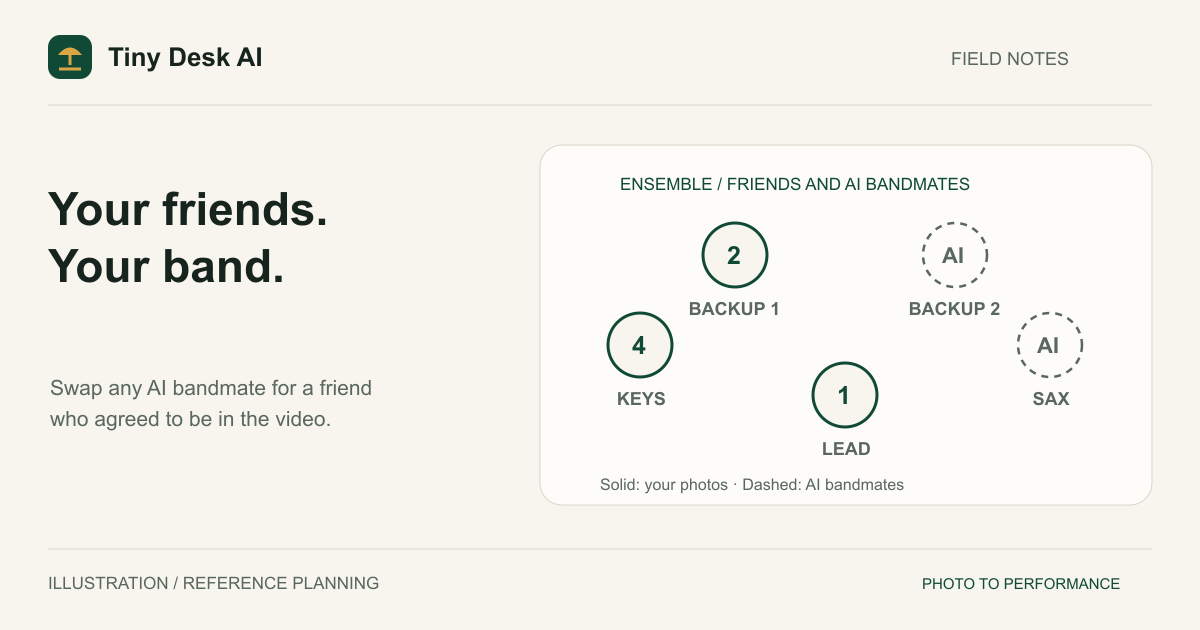
Creating Videos With Friends
The useful part of this workflow is bringing separate reference people into one generated performance. Every video is a five-piece band, so friends can take over any of the supporting roles: two backup singers, a keyboard player and a saxophone player. The scene, movements, and musical performance are generated rather than recorded from a rehearsal.
Decide who will occupy each role before collecting photos. That avoids discovering after a paid generation that the friend you pictured on saxophone ended up as a backup singer. The roles describe the generated scene; your friends do not need to have photographed themselves holding instruments.
Ask each person whether they agree to having their likeness uploaded and used in a generated performance. Agree where the resulting video may be shared, too. Permission to send you a photo is not necessarily permission to publish a music video featuring that person's likeness.
Choosing Photos
Use one adult per image. Individual portraits make the intended reference for each card clearer than a collage or a group photo. A crop containing several faces can introduce ambiguity even if one person appears larger than the others.
Aim for clear faces, visible hair, even light, and some shoulder or torso context. Similar image quality across the group helps you assess the result fairly. One sharp portrait beside a tiny, heavily filtered screenshot gives the model very different evidence for the two identities.
The photos do not have to share a background. Avoid trying to manufacture a common room by pasting people together; the generator creates the concert setting. For framing examples and file requirements, read the photo guide.
Mixing Friends and AI Bandmates
One friend out front
The smallest group video puts one of you on the lead-singer card and leaves the four AI bandmates as they are. Only that face has to be recognizable, which makes it the easiest result to judge.
A few friends in the band
Replace two or three supporting roles and keep the rest as AI bandmates. The default portraits show fictional people, so nobody will mistake them for a real acquaintance. That mix is often a good balance: enough familiar faces to make the clip personal, with fewer identities to check afterward.
A band made entirely of friends
Fill all five cards when the idea depends on everyone being someone you know. More people also mean more faces and role relationships to inspect in the output. The five-photo band guide walks through each role in that setup.
Assigning Performer Roles
Each card is the reference-role map. A photo stays with the card where you add it, so the order in which you choose files does not matter, and neither does who appears oldest or most prominent in a source image. Put the friend who should sing lead on the lead card, then place the others on Backup singer 1, Backup singer 2, the keyboard card or the saxophone card.
Before uploading, read the role label on every card and compare it with your plan. If two friends sit on each other's cards, remove one replacement, add that photo to the right card and validate the revised set before creating a task. Removing a replacement restores the AI bandmate for that role.
The role map tells the model what to do; it does not hard-lock a face to an instrument. Multi-person generation can still swap, blend, duplicate, or omit identities. A correct input is necessary preparation, but it is not proof that the final scene will follow every instruction.
Generating a Group Performance
Open the generator and fill the cards you planned. Inspect every preview and role label. The default portraits for roles you kept are included alongside your friends' photos. Upload and reference-photo checking happen automatically after you click Generate video; there is no separate upload action to complete.
Select 10 or 15 seconds, then choose 9:16 or 16:9 and an available resolution. A horizontal frame gives a group more lateral space. A vertical frame can work with performers arranged in depth, but it offers less width for side-by-side faces. Neither format guarantees that all people remain visible in every shot.
Check the current generation access and cost, then click Generate video once. The button first shows Checking photos…, and the video task starts only when preparation succeeds. The task can remain queued before processing. If it appears stuck, query or recover that same task rather than starting another merely to check progress. A new request can create a second paid generation.
When the result arrives, review it with your role list. Pause on group views and instrument shots. Confirm not just that five people appear, but that each friend occupies the role you chose. Download the file you intend to keep before relying on it for a later post or event.
Tips for Better Results
Keep your first concept simple. A lead singer and one or two friends with readable faces are easier to evaluate than a band where every role carries a new identity. If everyone must be identifiable for the video to be useful, judge that criterion before deciding the result is ready to share.
Choose portraits without extreme expression, strong beauty filters, or concealed eyes. Preserve enough of the head and shoulders to show natural build cues. Avoid stretching a narrow image to match another person's aspect ratio; that can distort the source anatomy before generation starts.
Compare the clip with the approved public examples, while remembering that those examples are individual outputs. They do not guarantee the same result for your group, photos, settings, or provider.
For another attempt, note the specific failure first: identity swap, a friend replaced by a stranger, compressed body, or unclear hand-to-instrument contact. Fixing a photo on the wrong card is different from improving a poor source portrait. Do not assume a higher resolution will resolve either problem.
FAQ
Can I upload one group selfie for the whole band?
Use separate photos, one person per image. Each card expects one reference for one role. A group selfie placed on a single card does not supply a reliable map of who plays what.
Can I include more than five friends?
No. The band has five fixed roles, so one video carries at most five reference photos. Split a larger project into separate planned videos rather than assuming extra identities will be preserved.
Does it preserve each friend's real voice?
No voice reference is supplied by these photos. The generated singing should not be presented as a recording of your friends' actual voices or musical abilities.
What if the wrong friend plays the saxophone?
First check that the intended saxophone player's photo was on the saxophone card. If that mapping was correct, the output still failed an identity-role requirement. Do not describe it as accurate; keep the task details and review your next attempt deliberately.