Tiny Desk AI Tutorial: Make a Video From Your Photo
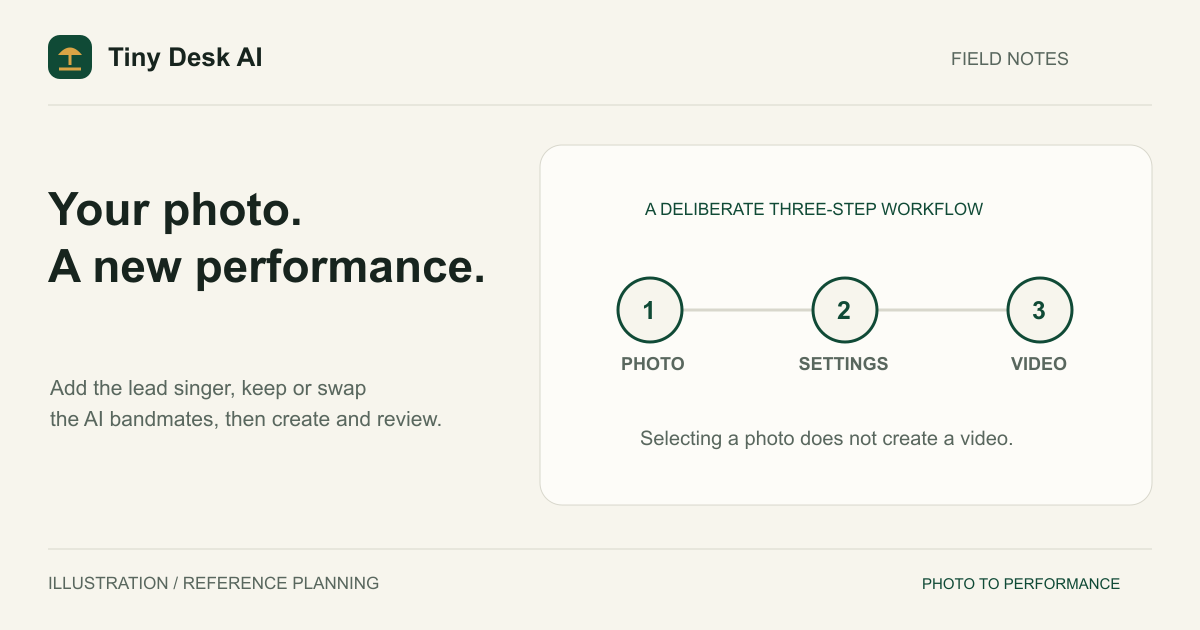
To make a Tiny Desk AI video from your photo, open the generator, add your picture as the lead singer and decide whether to keep the four AI-generated bandmates. Select your video settings, then click Generate video once. Photo upload and checking happen automatically before generation begins. Review the finished performance before downloading. This Tiny Desk AI tutorial explains what to prepare and what to check at each stage.
What Is a Tiny Desk AI Video?
A Tiny Desk AI video is a generated music performance set in an intimate, office-concert environment. Your reference photo guides the main performer's appearance, while the model creates the performance, instruments, room, and camera work. You are supplying a visual reference rather than filming yourself singing.
The result is an original AI-generated scene. It is not footage of an actual concert you attended, a recording of your voice, or an official NPR production. Tiny Desk AI is independent and is not affiliated with or endorsed by NPR or NPR Music. You can explore the Tiny Desk AI homepage for the product overview.
Identity resemblance, anatomy, instrument playing, and synchronization can vary. A completed task means the video was delivered; it does not mean every face or movement is accurate. Allow time to inspect the output, especially when working with several people.
What Do You Need Before Creating?
Prepare one clear adult portrait for the lead singer. It is the only required photo: the backup singers, keyboard player and saxophone player start as AI-generated bandmates. If friends want any of those roles, collect one separate photo of each person. Use photos you own or have permission to upload, and get permission from anyone whose likeness you intend to use.
The current upload rules accept JPG, PNG, or WebP files up to 10 MiB each. Each side must measure between 301 and 5,999 pixels, and the width divided by height must fall between 0.4 and 2.5. Renaming a file extension will not convert its actual format. If an upload fails, export a genuine supported image rather than repeatedly trying the same damaged file.
You also need to sign in and complete email verification before real uploads and generation. Each video uses credits, and the generator shows the cost before you create. Free registration includes no credits, so check the current access and cost information before submitting a task.
How to Create Your Video
Add Your Lead Singer
Open the generator and start with the Lead singer card. It is the only required slot; generation stays disabled until it holds a photo. Use the person you most want to recognize, because the lead takes the main microphone and usually the most screen time.
Keep or Replace the Bandmates
The other four cards are Backup singer 1, Backup singer 2, the keyboard player and the saxophone player. Each starts with an AI-generated portrait of a fictional adult, and those portraits are sent as references too, so the band always has five people.
- Keep a default portrait when that role does not need to look like anyone in particular.
- Use Replace photo on a card to put a friend in that exact role. The photo stays with the card you chose.
- Remove a replacement to bring back the AI bandmate for that role.
For a first attempt, changing only the lead gives you one identity to review. Add friends once you know how a single face holds up, rather than uploading a group selfie onto one card.
Automatic Photo Checks
Add a photo to the appropriate slot by selecting a file or dropping it into the photo area. Inspect the preview and file checks. Confirm that the image includes the person you intended and that you have not added a duplicate. You can remove an image and select another before uploading.
Choosing a file creates a local preview so you can inspect the cast before starting. There is no separate upload button. After selecting your settings, click Generate video once: the photos are uploaded and checked automatically, then the video task starts if those checks succeed. The button shows Checking photos… while that preparation is running.
If you change a photo before another attempt, review its card again. The next Generate video action automatically checks the revised selection. When you replace bandmates, check that each photo sits on the card for the role you intended; a previous successful check does not cover a newly selected image.
Select Video Settings
Choose a video model: Mini, Fast or Seedance 2.0. The model decides which resolutions are offered and how many credits a generation uses. At the same duration and resolution, Mini uses the fewest credits, Fast is in the middle, and standard Seedance 2.0 uses the most. Check the current generation credit table before starting.
Choose either 10 or 15 seconds. These are the current duration options. Pick 10 seconds if you want a shorter performance to review, rather than expecting a complete song in one clip.
Choose an aspect ratio for the destination: 9:16 for a vertical presentation or 16:9 for a horizontal frame. Decide before generating. Changing the page's settings later does not resize an existing task.
Every model offers 480p and 720p; 1080p appears only with Seedance 2.0. Resolution describes output size, not a guarantee of better identity, body proportions, or musical movement. Compare the available settings with your intended use and the cost shown or confirmed for your setup.
Generate and Download
Review the cast, model, duration, aspect ratio, resolution and displayed credit cost. Click Generate video once when you intend to create a paid task. Photo preparation happens first; a failed photo check stops the flow before a video task is created.
The task may queue before processing. Keep the request and task identifiers if an error needs investigation. If submission becomes uncertain, use the existing-task recovery controls rather than creating another request to see whether it works. A slow response does not prove that the provider never received the task.
When the task succeeds, play the video and inspect more than its opening frame. Compare every face with its card, then check shoulders, hands, feet when visible, instrument contact, mouth movement, and shot continuity. Then use the download control and open the saved file to confirm it plays. Download anything you want to keep promptly; a history entry is not a permanent archive of a provider-hosted file.
Tips for Better Results
Start with a waist-up or full-body portrait if you have one. A tight face crop leaves the model to invent most of the body. Good shoulder visibility and a natural camera distance give it more useful build cues. The photo guide explains framing and lighting in more detail.
Keep the face unobstructed, with even lighting and no heavy beauty filter. Avoid sunglasses, hands across the face, extreme low angles, or a wide-angle selfie taken very close to the nose. An uncluttered background can also make the intended subject easier to recognize.
Change one input at a time when comparing results. For example, keep the same bandmates and settings while replacing an overly tight portrait. If you change photos, duration, and composition together, it becomes harder to tell which adjustment helped. Each new generation is a separate operation with its own cost and uncertain outcome.
FAQ
Do I need a video of myself singing?
No. This workflow starts with still reference photos. It generates a performance; it does not reproduce a recording of your own singing voice from a photo.
Can I select a specific song?
The current generator does not provide a song-upload or track-selection control. Do not expect a particular commercial recording or an exact copy of another performance.
Why is Generate video disabled?
Check your login and email verification, the lead-singer photo and available credits. Photo checking or an unfinished or uncertain earlier request can also block a new task. Resolve the existing request using its recovery controls first. After it finishes, Generate another video starts a separate paid task with your current photos and settings.
Where can I compare the workflow with other guidance?
Use the step-by-step how-to guide for a shorter overview. This article focuses on choosing the cast, reviewing settings and checking the result. Upload and photo checking run automatically when you choose to generate.