Tiny Desk AI vs AI Video Generators: What to Compare
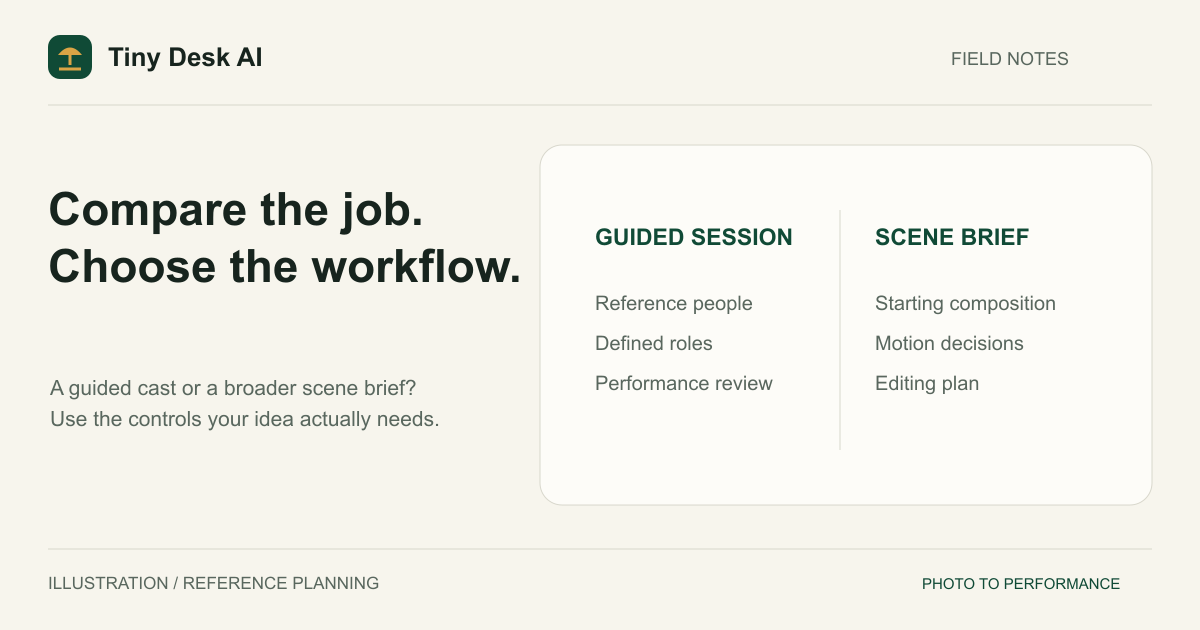
Choose a focused Tiny Desk AI workflow when your main goal is a reference-photo performance with predefined singer and musician roles. Consider a general AI video workflow when you need to design scenes, motion and edits more freely. Traditional AI music video generator is not one standardized category, so compare the actual inputs, audio and editing process rather than assuming one type of tool is universally better.
Define the Job Before Comparing Tools
A music video can mean many things: a singer performing in a room, abstract visuals behind a track, a sequence of invented locations or a carefully edited narrative. Those jobs involve different decisions. A single feature label such as image-to-video does not tell you which workflow a product makes convenient.
Tiny Desk AI narrows the brief to an intimate office-concert performance. You supply a lead-singer photo, decide which AI bandmates to keep or replace, and choose output settings. The scene and performance instructions are already part of the workflow; the current form is not a general prompt editor for unrelated film ideas.
General tools can be useful when that structure is too narrow. You may want to plan a location change, build a sequence of shots or direct the movement of a particular starting image. More open-ended control can also mean more decisions and review work, depending on the tool and account.
Compare How Images Enter the Video
A reference identity is not always a first frame
In this project's workflow, the five portraits are supplied as identity references for the lead singer, two backup singers, keyboard player and saxophone player. They guide a newly constructed performance scene rather than requiring every shot to copy a portrait as a fixed first frame. The four default AI bandmates are included as references alongside your lead photo.
By comparison, Runway's official image-to-video guide describes the starting image as the first frame and discusses prompts for the motion that follows. That documented workflow matters when you expect a portrait crop to establish the composition. This is a description of that guide, not a claim that every Runway feature uses identical inputs.
Check keyframes and references separately
Adobe's Firefly image-to-video guidance describes creating video using keyframe images and text prompts. Adobe also notes that availability can vary by region and user circumstances. Ask what the chosen feature treats as a frame, an identity reference or a visual guide instead of treating those terms as interchangeable.
Neither source establishes a guaranteed five-person concert-role contract. That does not prove the broader products cannot create concert scenes; it means you should verify the specific workflow you plan to use.
Decide How Much Scene Control You Need
A predefined performance brief
Every video is the same five-piece band. One reference person is the lead singer, and Backup singer 1, Backup singer 2, a keyboard player and a saxophone player complete the cast. Those four roles start as AI-generated portraits and can each take your own reference photo.
That structure is helpful when those are exactly the roles you want. It reduces the need to author a full concert brief in the interface. It does not give you a guarantee that the model will follow the roles correctly, nor a control for replacing them with any instrument or scene you imagine.
A broader creative brief
If your idea requires several locations or a specific starting composition, evaluate a tool that exposes the relevant controls directly. Look at its current documentation and account interface. Do not assume that a large collection of available settings will automatically produce a more coherent performance.
Write the desired scene in one sentence before choosing. A singer and friends in a small office concert is a different request from an illustrated music narrative across several environments. Comparing those outputs as though they solve the same job would be misleading.
Treat Music and Audio as a Separate Question
Check whether the workflow generates audio, accepts a user-supplied track, creates visuals to accompany an existing recording or requires an external editor. These are different capabilities, and they may differ between features inside the same product.
Tiny Desk AI requests generated audio with its performance. The current form does not provide an uploaded-song selector or a voice-reference input. It should not be described as cloning a person's real singing voice from a photo or reproducing a specified commercial song.
We have not verified every audio feature of the competing products through paid use. The comparison here is about documented workflows, not a test asserting that competitors lack music, that one system has better synchronization or that any service grants the rights you need for a particular track.
Compare the Work You Must Do After Generation
The delivered clip still needs review. In a portrait-led performance, inspect likeness, body scale, instrument contact and identity-to-role consistency. In a more complex video, also inspect transitions and whether separately created shots can be edited into a coherent sequence.
Consider the intended final format. This site exposes 9:16 and 16:9, with 10- or 15-second duration choices and model-dependent 480p, 720p or 1080p output. These are current site settings, not proof that every combination has been manually benchmarked or that a competitor must offer the same set.
The Examples page helps explain this project's output style. It is not a side-by-side competitor experiment. No competing video was imported, re-uploaded or presented as our result to write this comparison.
Use a Small Decision Worksheet
Write down the number of people who must remain recognizable, their roles, the desired scene, the audio source and the final viewing destination. Mark which requirements are essential and which are flexible. This exposes mismatches before you spend time on an unsuitable workflow.
Next, inspect the documented feature and current cost before submitting anything. If you choose this site's generator, verify each role card and the settings, then click Generate video only when you intend to spend the credits shown. Upload and photo checking run automatically before the task starts.
Finally, use the same acceptance criteria when comparing results you are authorized to create. A beautiful background should not outweigh a missing friend if identity was your essential requirement. The feature-comparison guide turns that reasoning into a broader selection checklist.
FAQ
Is a dedicated generator always easier?
Only when its predefined task matches your goal. A narrow workflow can become inconvenient if you need controls it does not expose. Read the homepage description before assuming the name matches your intended music video.
Does a general video tool guarantee better quality?
No such result is established here. A feature list is not a controlled test of facial identity, performance or anatomy.
Can I copy the same settings between services?
Not necessarily. Reference handling, supported durations, audio and parameter meanings may differ. Inspect the chosen product's current interface and documentation rather than treating model names as interchangeable contracts.
Sources, Date and Disclosure
Product documentation checked 1 November 2026: Runway image-to-video guidance and Adobe Firefly keyframe workflow. This article is published by Tiny Desk AI and describes our own product alongside alternatives. It is not an independent lab review, paid-generation benchmark, price comparison or universal ranking.