AI Video Resolution Guide: 480p vs 720p vs 1080p
Choose 480p, 720p or 1080p according to where the video will be viewed and how much image detail you need to inspect. A higher resolution is a larger output target, not a guarantee of a more accurate face, better body proportions or convincing musicianship. In Tiny Desk AI, evaluate the performance itself before treating the resolution label as a quality verdict.
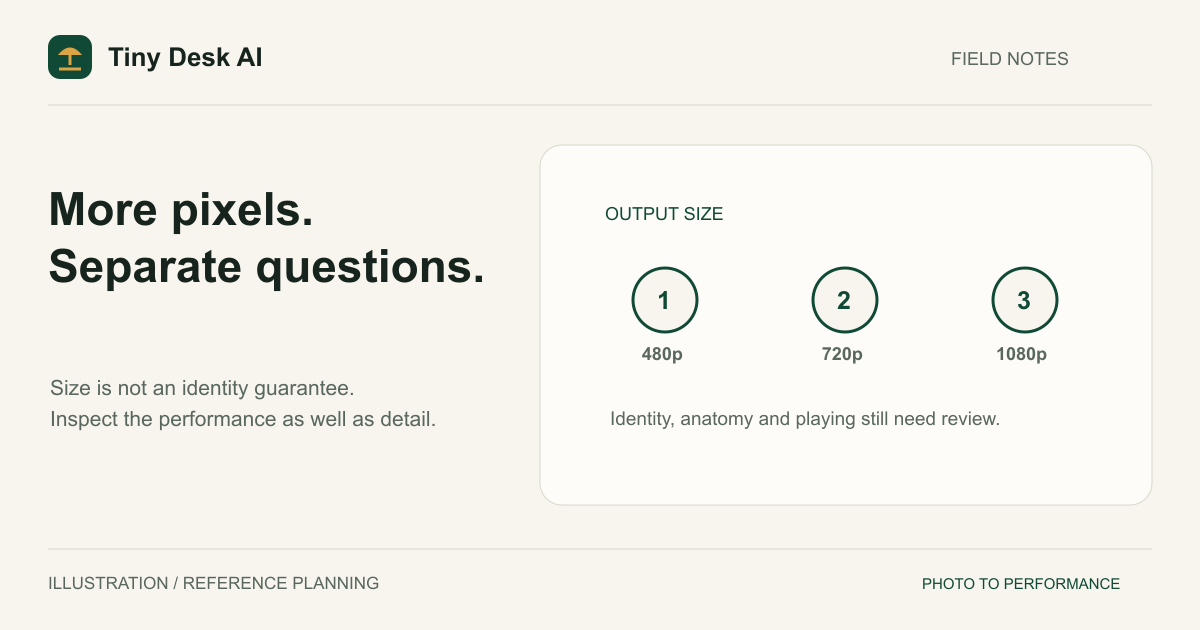
Separate Pixel Size From Generation Quality
Resolution describes the dimensions of the output image sequence. It does not directly describe whether a person resembles the reference or whether a hand reaches the correct instrument. Those are different qualities that need separate inspection.
For a conventional horizontal frame, 720p commonly corresponds to 1280 by 720 pixels and 1080p to 1920 by 1080. A vertical frame uses a different width-to-height arrangement. Treat these as familiar examples, not a promise about every provider export; inspect the actual downloaded file when exact dimensions matter.
A sharper view of a wrong face is still a wrong face. An anatomically awkward singer does not become naturally proportioned simply because more pixels describe the same mistake. Start by deciding what makes a result acceptable, then judge size and detail alongside that standard.
When to Consider Each Resolution
480p: modest viewing demands
Consider the lower resolution when the intended display is small and fine detail is not central to the use. Look carefully at whether faces and instruments remain readable at that size. A smaller file may be convenient, but do not assume every 480p generation is cheaper or faster without checking the current cost for your setup.
This is not a promise of a free draft. Creating a task still uses the configured generation service. Also, a 480p result is not necessarily the exact same video you would have received at another resolution.
720p: a practical middle option
720p is worth considering when you want a balance between a readable video and moderate output size. Evaluate it on the device and page where it will actually be watched. Do not judge only an enlarged browser screenshot or a tiny thumbnail.
If facial identity and body scale already look wrong, increasing resolution should not be your only response. Revisit the source photos and the role map first.
1080p: more room for visible detail
Choose 1080p, which requires the standard Seedance 2.0 model, when the intended presentation benefits from a larger image and the current generation cost is acceptable. It can support closer inspection of visible detail, but it does not provide an identity guarantee, reveal a hidden backup singer or ensure natural finger movement.
Avoid describing it as the best setting for everyone. The intended display, source clarity, composition and actual delivered result determine whether the extra size is useful.
Understand the Current Site Options
Tiny Desk AI currently offers 480p and 720p with every model and adds 1080p with the standard Seedance 2.0 model, alongside 10- and 15-second duration choices. These settings are checked on the server and passed to the configured provider. The duration and resolution are separate parameters; selecting 1080p does not select a longer clip.
The model picker offers Mini, Fast and Seedance 2.0. Mini and Fast support 480p and 720p; the standard Seedance 2.0 model also supports 1080p. Credits depend on the model, duration and resolution, so the same resolution does not cost the same across models. See the current generation credit table. If you leave the standard model while 1080p is selected, the form returns to a supported resolution; check the final selection before generating.
The public examples are individual outputs, not exhaustive tests of all combinations. In particular, seeing a 10-second sample does not prove that every 15-second and resolution pairing has been manually verified. An option being supported by the request format is different from a documented end-to-end quality result.
Match Resolution to Composition and Delivery
Choose the aspect ratio before treating resolution as the main decision. A vertical 1080p frame does not provide the same side-to-side space as a horizontal frame. If the problem is that instruments are outside the composition, more pixels cannot bring them into view.
Start with readable facial identity and believable movement of the lead singer. Then assess every bandmate you replaced with a friend's photo. Check the lead and both backup singers at their microphones, the keyboard player at the keys and the saxophone player with the horn.
The aspect-ratio guide explains those spatial tradeoffs. Think about the final publishing interface too: a platform may resize or process an upload, so the local file is only one stage of delivery. No setting in this article guarantees a particular platform's final appearance.
Compare Results Without Inventing a Benchmark
Begin by listing your acceptance criteria: recognizable lead, correct group roles, plausible anatomy, coherent movement and readable instruments. Then identify what finer detail you need the resolution to reveal. This prevents file size from overshadowing more important failures.
If you deliberately create another paid attempt, change one major variable at a time when possible. Keep the source references, role cards, duration and ratio consistent so your notes remain useful. Even then, separate generations can vary for reasons beyond resolution; a pair of clips is not a controlled scientific benchmark.
Do not present your private comparison as a universal success rate. Likewise, our Examples page illustrates real outputs approved for public display, not a promise that 1080p will outperform 720p on your photos. The consistency guide provides a more specific review method.
Inspect the Downloaded File
After the task succeeds, play the full video and use the download control. Open the saved file and inspect its properties if exact dimensions, duration or frame rate matter. The resolution label alone does not tell you the frame rate or every encoding detail.
Keep an acceptable original download before making edits or uploading it elsewhere. Enlarging a lower-resolution file afterward is a different process from creating a new generation, and it cannot prove that missing facial or instrument detail has been reconstructed accurately.
When ready, use the generator and confirm the settings before submission. The homepage provides the overall workflow; this guide adds a decision framework rather than a new export or upscaling feature.
FAQ
Is 1080p always better than 720p?
No. It is a larger resolution target, but identity, anatomy, movement and composition can still be worse in an individual result. Choose based on the delivered video and intended use.
Can I upgrade an existing task by changing the form?
No. The form controls a future request. It does not change the settings or output of a completed task.
Does 15 seconds mean higher quality?
No. It asks for more time, not a higher-quality face or body. It can also give you more frames and transitions to evaluate.
Source and Verification Limits
The settings described here were checked against the current generator on 1 November 2026: Mini and Fast offer 480p and 720p, while standard Seedance 2.0 also offers 1080p. Every model offers 10- or 15-second clips. These are available controls, not a paid resolution benchmark or a promise about completion time, likeness or visual quality.