Tiny Desk AI for TikTok and Instagram Reels
To make a Tiny Desk AI video for TikTok or Instagram Reels, plan a phone-oriented performance, choose suitable portraits and usually start with a 9:16 frame. Generate only after reviewing the settings, download and inspect the result, then check the destination app’s publishing preview before posting. Tiny Desk AI creates the clip; it does not automatically publish it or guarantee acceptance, visibility or engagement on either platform.
Decide What the Viewer Should Notice
Start with the point of the post. Is it one person imagined as a lead singer, two friends sharing a performance, or a full group with distinct instrument roles? The answer helps determine how many reference people need to remain readable in a narrow frame.
Avoid planning the video entirely around a promised reaction or view count. This guide does not establish a viral formula. A useful creative brief is something you can evaluate in the clip, such as a recognizable vocalist and a believable interaction with the keyboard player.
Look at the homepage and the approved examples to understand this project's performance style. Those samples demonstrate individual outputs; they are not evidence that a post will receive a particular response on a social platform.
Prepare a Phone-Oriented Performance
Decide who joins the lead
Every clip is a five-piece band. Your uploaded lead singer takes the main microphone, and the two backup singers, keyboard player and saxophone player start as AI-generated bandmates that you can keep or replace with friends' portraits.
If each friend must be clearly identifiable, consider how the whole group will fit. A vertical composition can use depth, but a rear performer may be hidden. Do not compress the planned cast into a narrow frame by accepting unnatural body proportions as an unavoidable design choice.
Start with the intended output shape
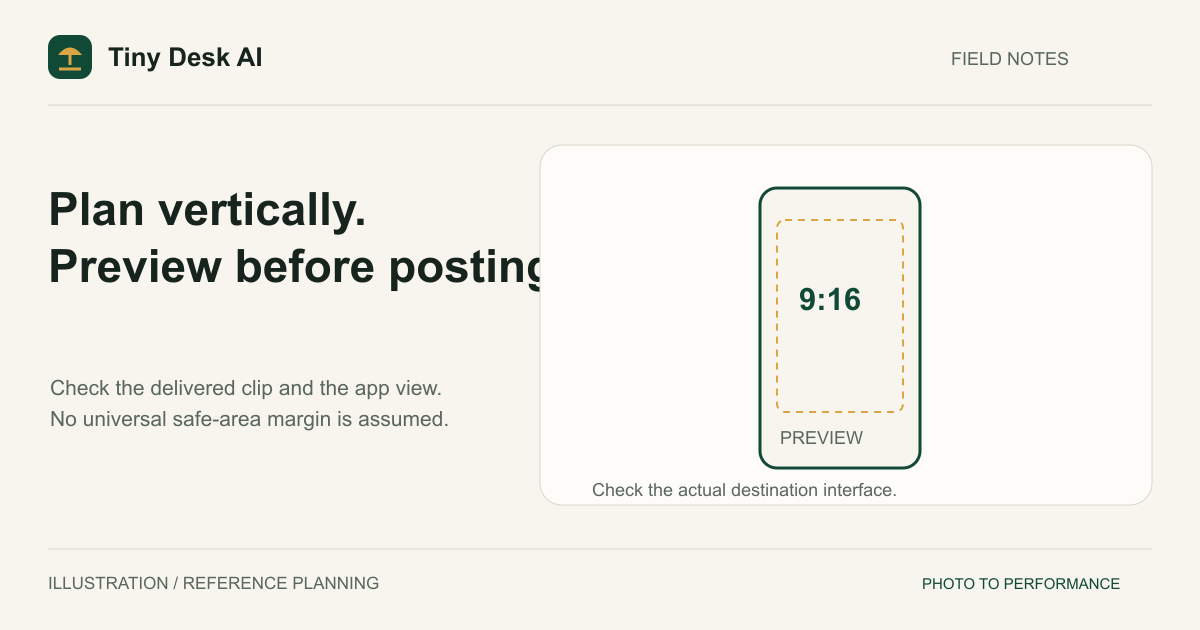
9:16 is a practical starting point for a tall, phone-oriented post. It is a recommendation about presentation, not a universal statement of either platform's upload rules. A horizontal video can be used in different layouts, but cropping it afterward may remove instruments and faces.
The aspect-ratio guide compares those tradeoffs. Your reference portrait can have a different shape from the final video; do not stretch the person's face or body to match the selected frame.
Choose Duration and Resolution Deliberately
The current generator offers 10 and 15 seconds. Choose a duration suited to the moment you want to show. Ten seconds can support a compact performance idea; fifteen gives a longer requested clip. Neither setting guarantees a stronger musical phrase, more useful cuts or better identity retention.
The public examples document their own settings, not every supported combination. Do not assume that a visible option or an existing sample proves all durations and resolutions have been manually tested together.
Choose 480p or 720p, or 1080p with the standard Seedance 2.0 model, for the intended display and the cost of your current setup. A larger image target cannot fix the wrong face or a missing saxophone player. The resolution guide explains how to inspect detail without treating 1080p as an automatic quality upgrade.
Create and Review the Original Clip
Open the generator, sign in and complete any required email verification. Add the lead singer and any replacement portraits you have permission to use. Inspect every role label and choose your settings. Clicking Generate video uploads and checks the photos automatically before starting the video task.
Click Generate video once when you intend to spend the credits shown. If the submission outcome is uncertain, recover or query the original task instead of generating a replacement while the first may still be running. This is a paid creation workflow, not a promise of a free social-media clip.
Once the result is delivered, watch it fully before opening a publishing app. Check facial identity, normal adult proportions, visible hand-to-instrument contact and continuity across cuts. A pleasing thumbnail does not establish that the performance remains convincing in motion.
Download the file and play the saved copy. This separates generation review from publishing review: a failed local download should be addressed before you assume the social platform caused a problem.
Check the Publishing Preview
Use the destination app's available preview or draft workflow before committing to a post. Interfaces can place captions, account information and controls over different regions of a video. Check the singer's face and important instrument actions against what your account actually displays.
Do not rely on one fixed safe-area margin copied from another placement. For example, advertising guidelines can describe different interfaces from an ordinary organic post. If your project will become an advertisement, verify that exact placement separately.
Listen to the preview as well as watching it. Check that the intended audio is present and that any edits you made did not create an accidental mute or abrupt ending. This site does not supply a direct TikTok or Instagram publishing integration, and this article does not promise that either platform will preserve audio unchanged.
If exact technical dimensions, frame rate or encoding matter to your account's upload workflow, inspect the downloaded file and consult current official requirements. The studio's resolution label is not a control for every encoding property.
Add Accurate Context Without Misrepresenting the Video
Describe the scene as AI-generated rather than a recording of an actual concert your friends performed. Do not suggest that NPR hosted or endorsed it. Tiny Desk AI is independent of NPR and NPR Music, even when a viewer recognizes the intimate-concert concept.
Use the current disclosure tools and posting requirements available for your account and content. Avoid assuming that another person's post establishes the rules for your own. This guide does not certify compliance or provide an exhaustive policy checklist.
Do not assume that a trend name grants access to a commercial song. The current generator does not include a specific-song upload or selection control. If you add music in another application, check the permissions and options for that intended use rather than attributing the recording to Tiny Desk AI.
Keep a Reusable Copy and Review Notes
Save the original acceptable download before applying crops, overlays or other edits. That gives you a known starting file if a later export looks wrong. Keep notes about the model, role references and settings without publishing private portrait files or account details.
If a new attempt is necessary, identify the problem first. A hidden backup singer calls for a composition review; a blurry reference calls for better input; an identity swap calls for checking the role map and result. Creating a larger file is not a universal remedy.
FAQ
Does Tiny Desk AI post directly to my account?
No. The current workflow creates a video for playback and download. You handle the separate publishing step in the destination application.
Must I use 1080p?
This article does not establish a universal upload requirement. Check your current destination workflow. Choose resolution for a useful delivered image, not as a guarantee of likeness or platform approval.
Will it use my real singing voice?
No voice reference is supplied by a still portrait. Do not describe the generated vocals as a faithful recording of the pictured person's actual voice.
Source and Platform Limits
Checked 1 November 2026: TikTok's documented in-feed ad specifications recommend vertical 9:16 for that advertising context and explain that safe zones depend on placement details. Those specifications are not presented here as universal TikTok or Instagram organic-post limits. Confirm current requirements in the destination's official help and upload interface; no reach, monetization or acceptance outcome is promised.